How to Use a Keyboard Shortcut to Translate Text Instantly on Mac and Windows
How to Use a Keyboard Shortcut to Translate Text Instantly on Mac and Windows
Most people translate text the same way: copy it, open a browser tab or a translation app, paste it in, wait for the result, copy it back, switch to the original app, paste again.
It works. But it interrupts everything.
A global keyboard shortcut changes this entirely. Instead of switching apps, you select the text where it already is — in Slack, Gmail, Notion, Google Docs, anywhere — and trigger a shortcut. The translation comes back in place, in about 2 seconds.
Here's how it works and why the difference matters.
Browser Extensions vs. System-Wide Shortcuts
Browser extensions can translate text inside a web page. They're useful — but they only work in the browser.
If you're writing in a desktop app like Slack, the native Gmail client, Notion, or any other non-browser tool, extensions don't help. You still have to copy and paste somewhere else.
A global keyboard shortcut operates at the system level. It intercepts selected text from any desktop app — regardless of whether it's a browser, an Electron app, a native Mac or Windows application — and processes it without requiring you to leave.
That's the key distinction: system-wide, not app-specific.
How a Global Translation Shortcut Works
The mechanics are straightforward:
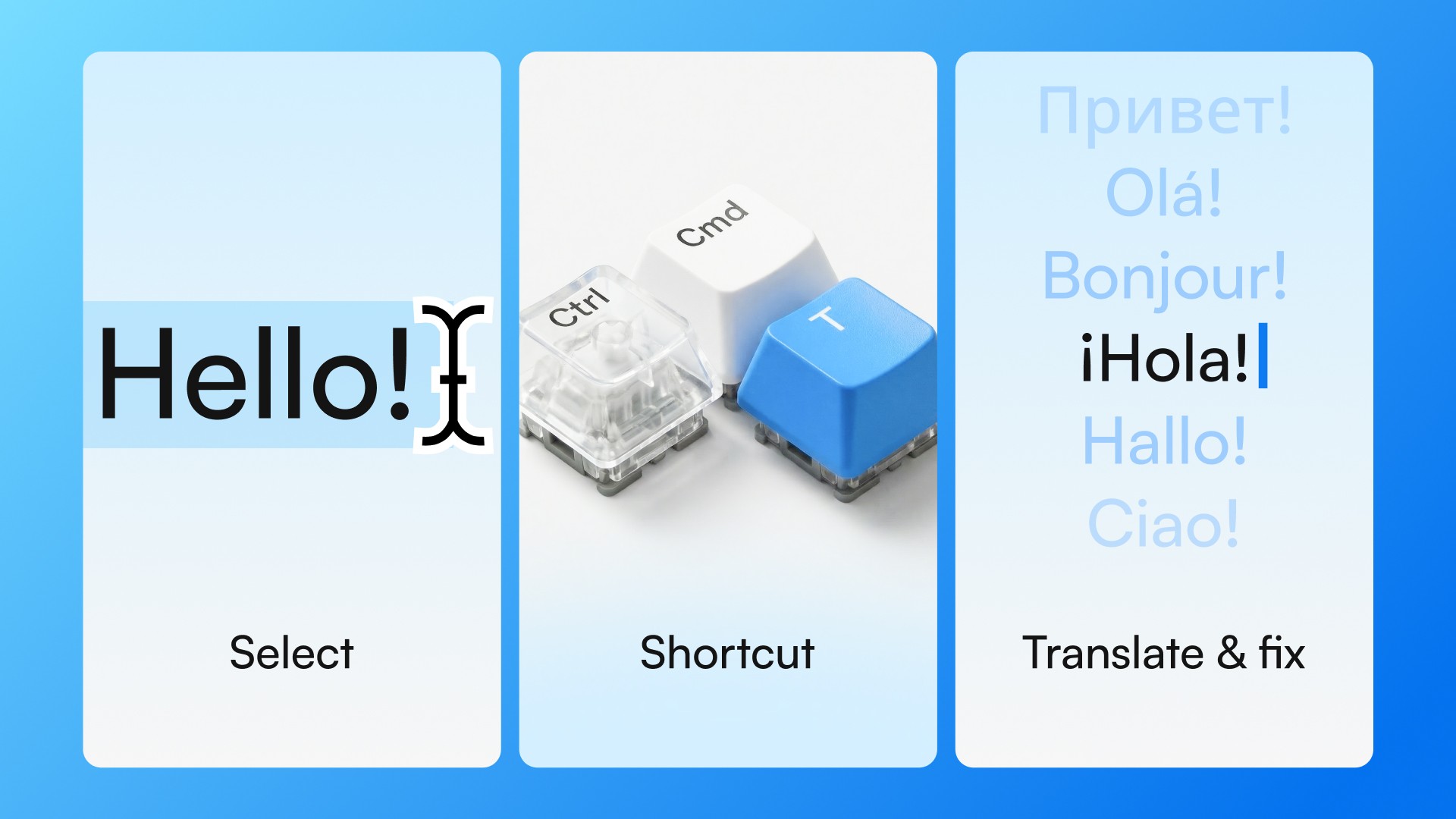
You select text in any desktop app
You press the shortcut
The selected text is sent to an AI model in the background
The result replaces your selection (or appears next to it) in under 2 seconds
No tabs opened. No copy-paste. No context switch.
The shortcut registers at the OS level, which means it works regardless of which app is in focus — whether that's your email client, a project management tool, a code editor, or a browser.
What You Can Do With It
Translation is the most obvious use case — but the same shortcut applies to:
Tone adjustment — rewrite a message to sound more direct, formal, or casual
Correction — fix grammar and word choice in text you've already written in English
Clarity — simplify complex sentences before sending
Select the text, choose the action, get the result. Same shortcut, same flow.
Typeflow's Global Shortcut
Typeflow is a desktop app that adds a global shortcut to Mac and Windows:
Mac: Ctrl+Cmd+T
Windows: Ctrl+Win+T
Select text in any app, trigger the shortcut, and in about 2 seconds you get a translation (or correction, or tone adjustment) without leaving what you were doing.
It supports translation from any language into English — Portuguese, Spanish, French, German, Italian, and others — with output calibrated for professional use, not just literal conversion.
Try Typeflow free for 7 days. No credit card required.